Resources
A Quick Tour of My Practice Labs: From Client Files to Finished Report
Here is what working with a client's labs looks like, from the files they send you to the report you hand back. Six screens, a few minutes of your time.
Every screenshot on this page uses a fictional practice and fictional clients.
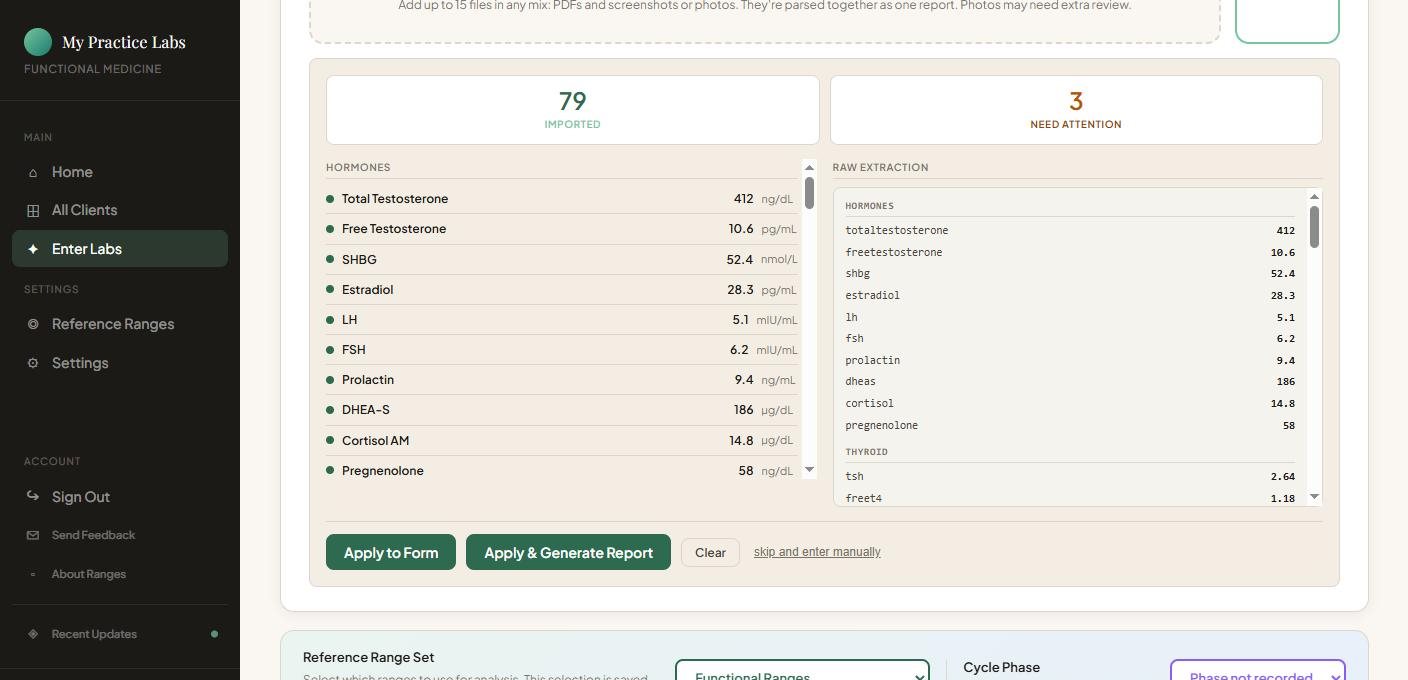
1Upload what your client sends
Drop in lab PDFs, patient portal screenshots or photos, up to 15 files at once. The values come in organized by panel, and anything that needs a second look is set aside for you to check. Nothing is saved until you have reviewed it.
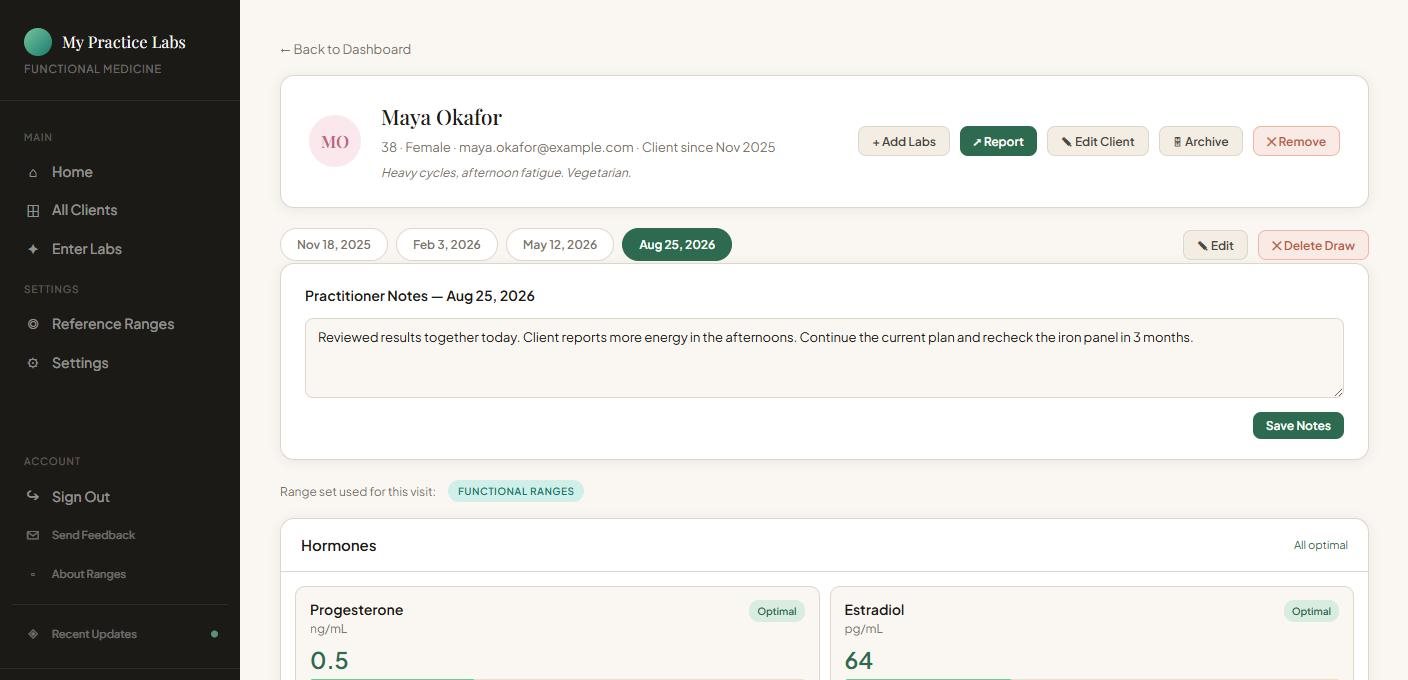
2Every client in one place
Each client's visits line up by draw date, and your notes for each visit sit right alongside the results.
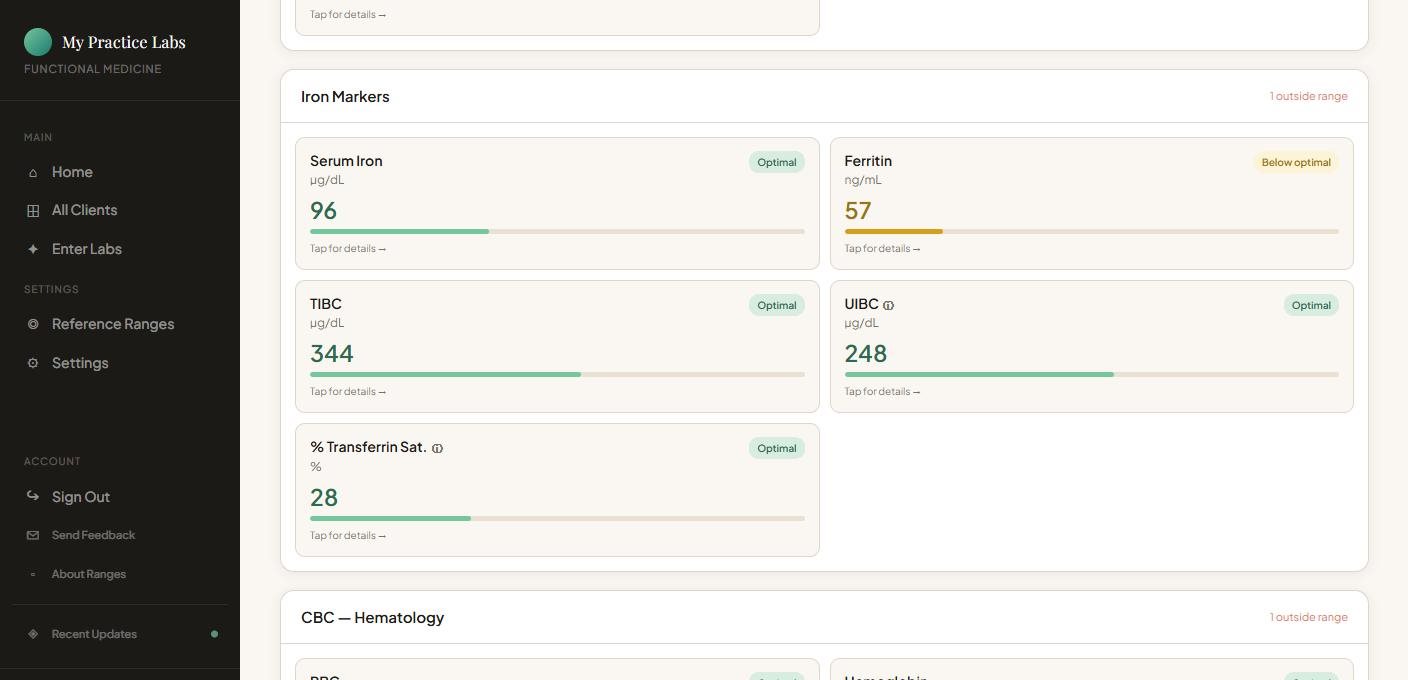
3Results against your ranges
Every marker shows where it sits against the ranges you work with, panel by panel, so you can see the whole picture at a glance.
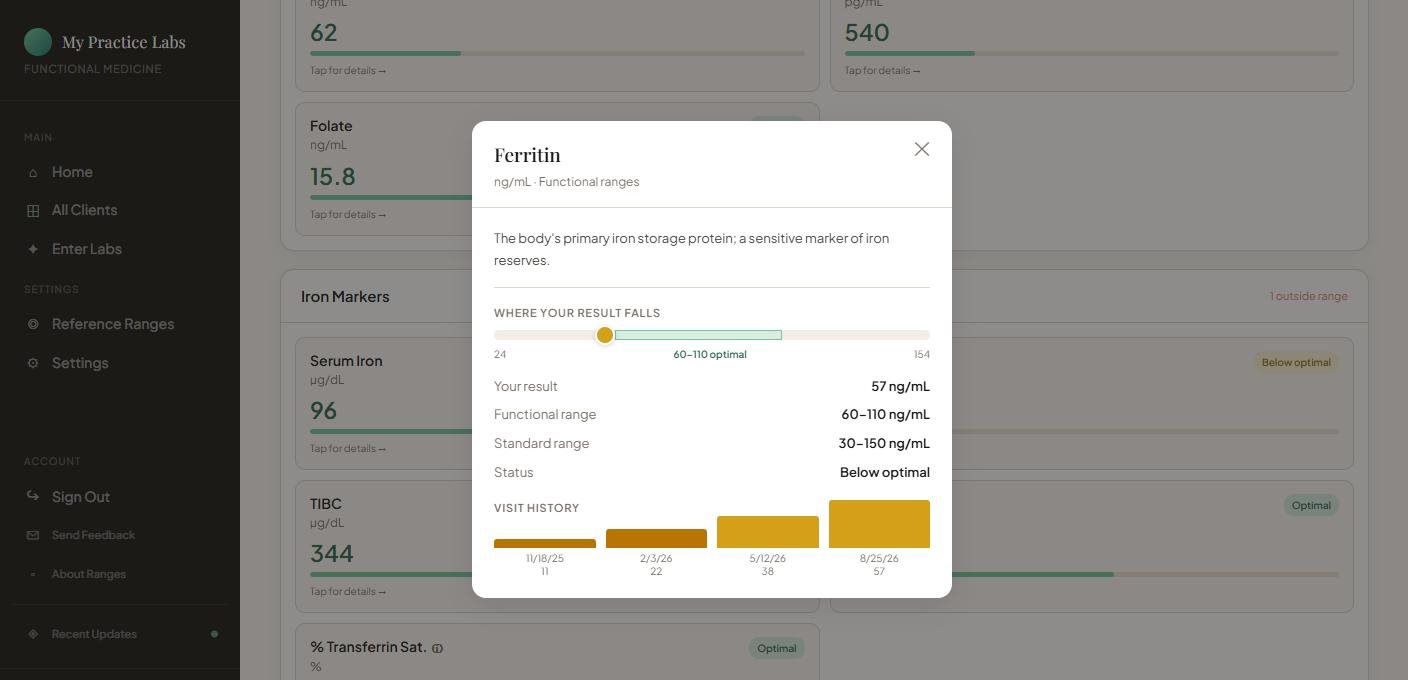
4See the trend across visits
Open any marker to see your functional range, the standard range and how the value has moved from visit to visit.
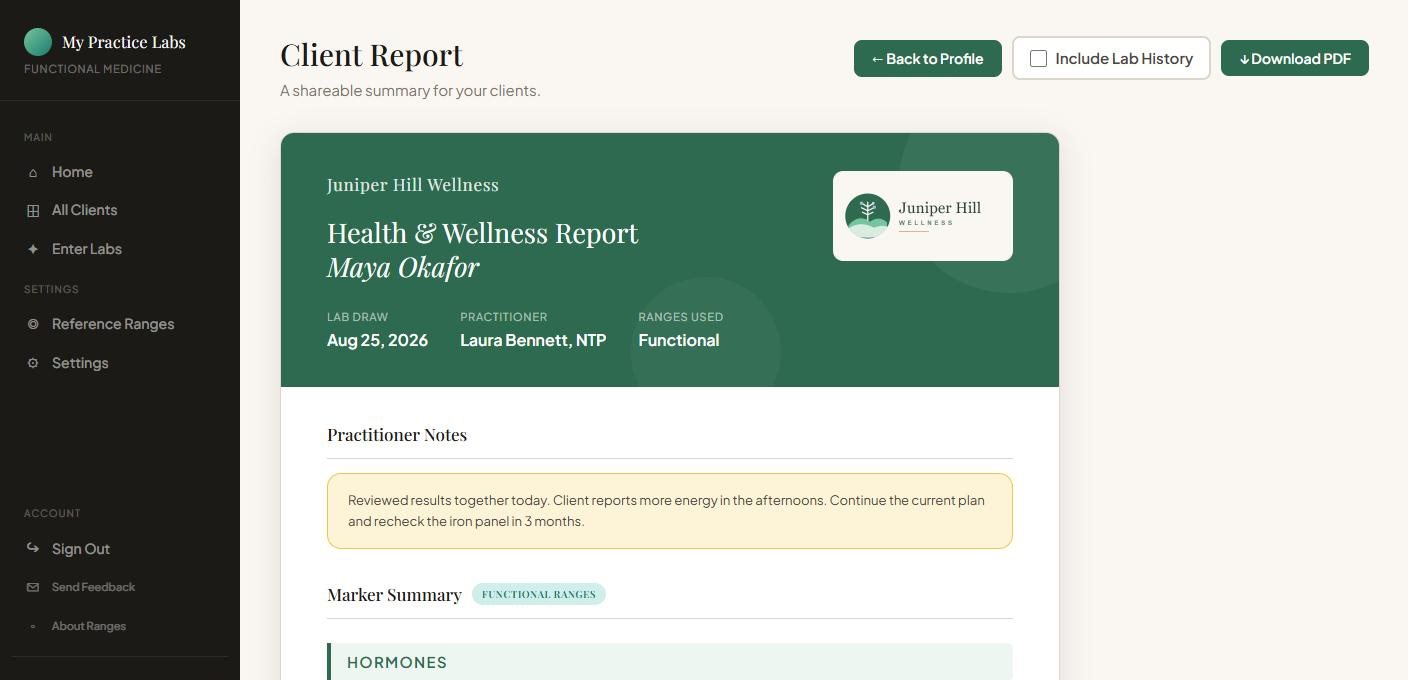
5A branded report, ready to share
Your logo, your practice name and your notes, in a clean report you can download and share through the client portal you already use.
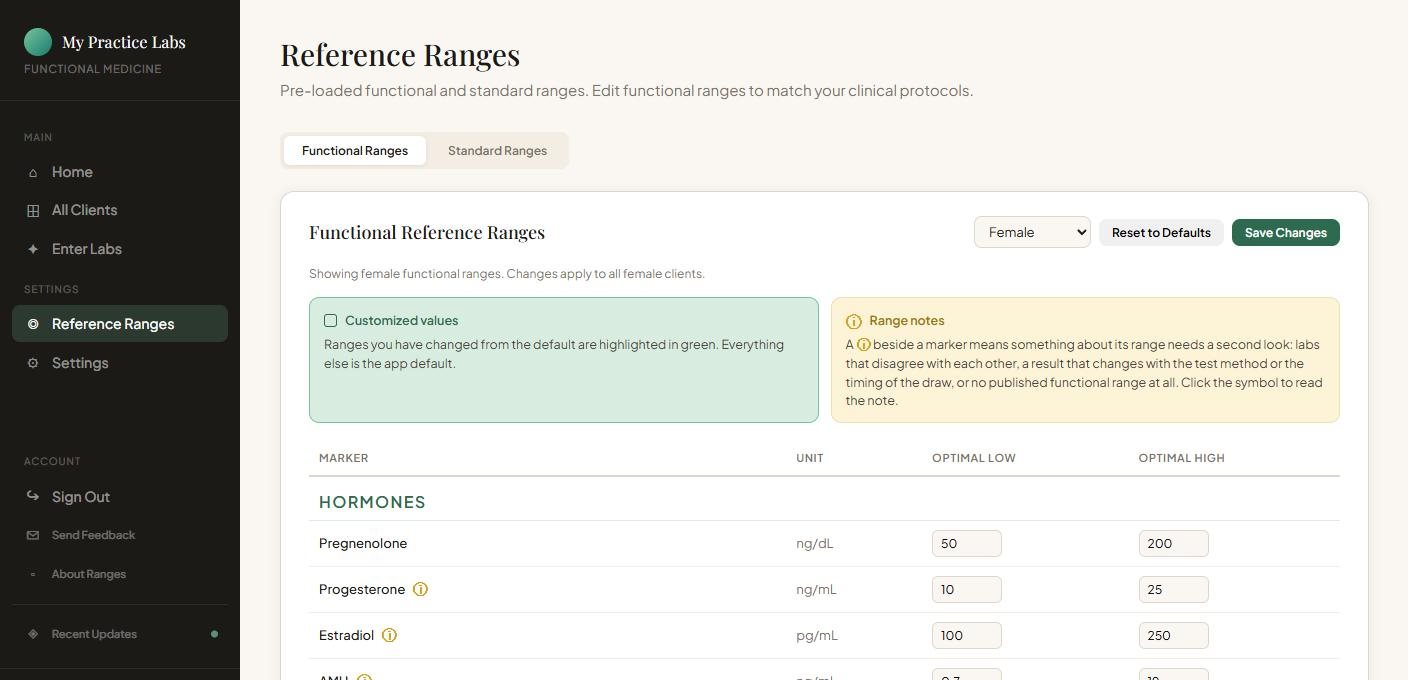
6Ranges that match how you practice
Start with built-in functional and standard ranges, then set your own, with separate sets for male and female clients. Your changes are highlighted and apply across your whole practice.
Try it with your next client's labs
Start a 7-day free trial, no credit card required.
Start free trialMy Practice Labs organizes and presents lab results. It never diagnoses, scores or recommends; all interpretation stays with the practitioner. Want the bigger picture first? Read From Client Screenshot to Finished Report: An Easier Lab Workflow.